Availability and pricing
The accounting module is available on customer tenants only. It is a paid add-on — visit kydo.ch for pricing details.
Accessing the setup
From the KYDO home screen, click the Administration card and select Financial Accounting. This section is only available to administrators.
Connecting your financial software
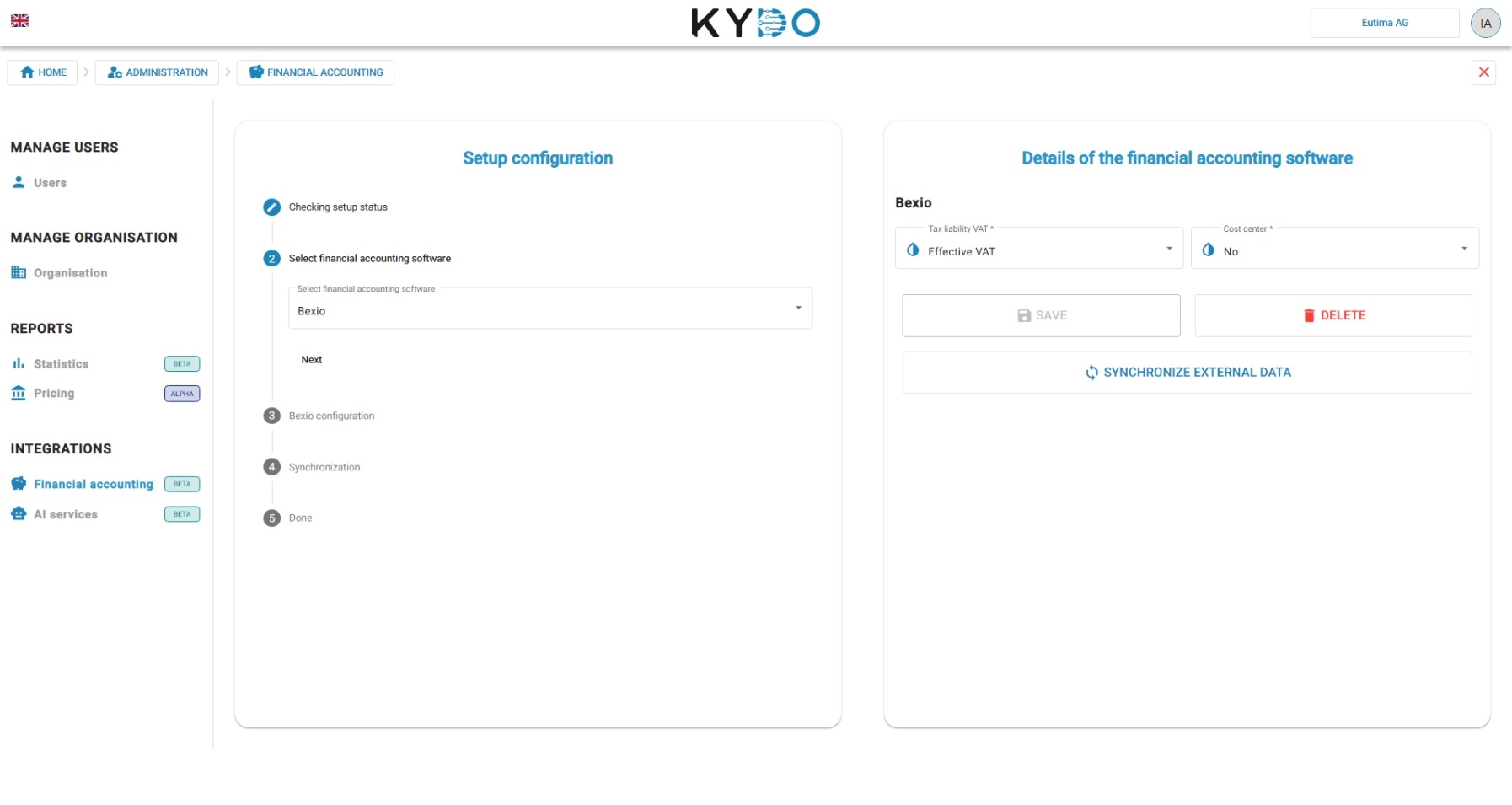
The first step is to run the setup and select your financial software.
Whichever mode you choose, the core features remain the same: a clean expense archive with a viser approval flow. Journal entries and reconciliation are additional features available on top of that.
Common settings
A few settings apply regardless of which financial software you connect:
- Allow creating new addresses — when off, new addresses (creditors) can't be created in KYDO; add them directly in your external accounting software instead.
- Enable payroll — turns on payroll processing for manual accounting and Bexio.
- Automatically archive CV documents — when on, incoming inbox documents with a preset doc type skip the manual inbox step and go straight to the archive for processing.
Bexio
Bexio is supported with a straightforward setup. Follow the steps in the configuration screen to connect your Bexio account.
Manual accounting
If you do not use an external accounting tool, you can select manual accounting. You can manage your expenses and keep them organized directly in KYDO, without connecting any external software. Journal entries, reconciliation, and payment file generation (pain format) are available as additional features if you need them.
Other financial software
KYDO integrates with a wide range of accounting systems:
- Infoniqa ONE 200 (formerly Sage 200)
- Infoniqa ONE 50 (formerly Sage 50, via Albatross API)
- Microsoft Dynamics 365 Business Central (formerly Navision)
- SelectLine
- Topal Financial Accounting
The configuration for these systems is more involved than Bexio. Contact us and we will guide you through the setup for your specific software.
We build new integrations on demand — if your software is not listed, reach out and we will evaluate it together.
Accounting plan
The accounting plan (chart of accounts) is available in the same section as the setup — Administration → Financial Accounting.
You can view and edit the accounting plan directly in KYDO. This is available for manual accounting configurations. For each account, you can also set whether VAT can be booked on it and choose a default VAT code — booking forms then only offer VAT on accounts that allow it, pre-filled with the account's default code when one is set.
If you need to import an existing plan, this is possible via the KYDO API. The file must follow the expected format. Contact us and we will guide you through the process.
What the setup creates
When you complete the setup, KYDO automatically creates a set of standard document types and lists. You can find this data in the properties linked to your document types and lists.
Adding payment accounts (manual accounting)
If you are using manual accounting, you need to add at least one payment account before you can process expenses.
- Go to Lists in the administration section.
- Find the list named Payment Accounts.
- Add at least one element.
Without a payment account, the expense flow cannot be completed.
→ See Doc Type Configuration
Automatic data extraction
If you activate the KYDO AI Service, document data is extracted automatically — saving you from entering values manually when archiving expenses.
→ See AI Service
Frequently Asked Questions
Does KYDO work without an external accounting tool? Yes. Select manual accounting during setup. You can manage expenses, run the journal, reconcile payments, and generate PAIN payment files — all without connecting external software.
Which accounting software does KYDO integrate with? KYDO integrates with Bexio, Infoniqa ONE 200 (formerly Sage 200), Infoniqa ONE 50 (formerly Sage 50), Microsoft Dynamics 365 Business Central (formerly Navision), SelectLine, and Topal Financial Accounting.
Is the accounting module included in the base price? No. The accounting module is a paid add-on available on customer tenants only. Visit kydo.ch/preise for details.
What does the setup create automatically? After completing the setup, KYDO creates a set of standard document types and lists ready for expense processing.
Can KYDO extract data from invoices automatically? Yes, if the AI Service is active. It extracts amounts, dates, supplier information, and other fields automatically. QR code data is always parsed regardless of the AI Service.
Can I stop users from creating new addresses in KYDO? Yes. Turn off Allow creating new addresses in the accounting setup. New addresses (creditors) then have to be added directly in your external accounting software.
What does automatically archiving CV documents do? When enabled, incoming inbox documents with a preset doc type are sent straight to the archive for processing, skipping the manual inbox step.