Overview
The approval flow adds a controlled review step to any doc type. When a document enters the flow, it is marked as pending approval. Designated approvers can then approve or reject it — with an optional comment. Once the minimum number of approvals is reached, the flow is resolved.
There are three variants:
- Inline request (no pre-configuration) — any user can trigger an approval request directly on a document, picking the approvers and minimum on the spot. No doc type configuration is required.
- Optional flow — the flow is pre-configured on the doc type, but the user can override the approvers or minimum before submitting.
- Mandatory flow — the flow is fixed on the doc type and cannot be bypassed. Every document of this type must go through approval before processing. Only administrators can configure a mandatory flow. A dedicated UI for managing mandatory flows is in development and will be released in a future update.
Configuring the approval flow on a doc type
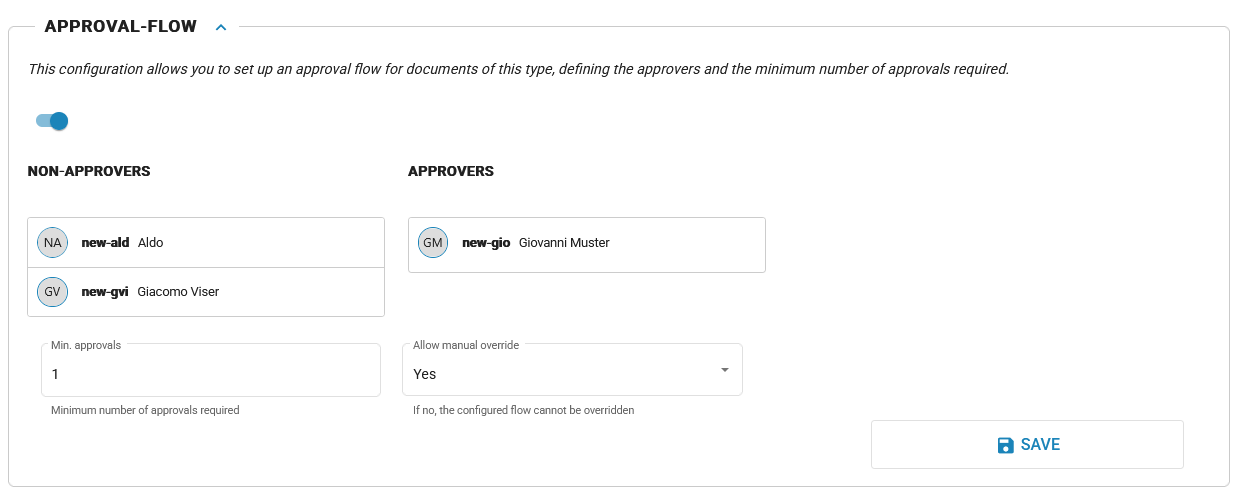
Open the doc type configuration screen (click the settings icon next to the doc type in the Properties list), then scroll to the Approval Flow section. See Doc Type Configuration for a full reference of all configuration options.
Adding approvers
Use the approver picker to add one or more users to the approval flow. Only users with the Approver role appear in the picker.
Minimum approvals
Set the Min. approvals value to define how many approvals are required before the flow is considered resolved. For example, if you add three approvers and set the minimum to two, the document is approved as soon as any two of the three approve it.
Allow manual override
The Allow manual override toggle controls whether the configured flow is fixed or adjustable:
- On — users can modify the approvers or minimum value when they trigger the flow on a specific document.
- Off — the flow is mandatory. The configured approvers and minimum value are enforced and cannot be changed per document. This is the recommended setting when approval is a compliance requirement.
Requesting approval on a document
When a doc type has an approval flow configured, an approval panel appears on the document card in the archive.
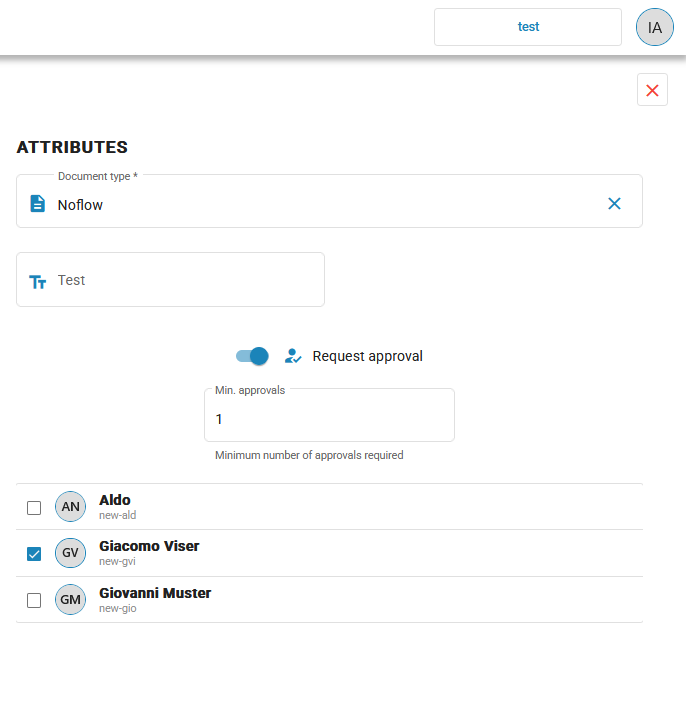
Click Request approval to start the flow. If the flow is set to allow manual override, you can adjust the approvers and minimum before submitting. Once submitted, the document status changes to pending approval.
While a document is pending approval, it is locked: you cannot upload a new version, edit its attributes, or open it via the KYDO desktop integration, and accounting (CV) actions on it are blocked until the flow is resolved.
If a new attachment is added to a document that has already been through an approval flow — whether it was approved or rejected — the flow automatically restarts with the same approvers and minimum, and the document returns to pending status.
Approving or rejecting a document
Approvers see the approval panel directly on the document card in the archive. Click View approval flow to open the approval dialog.
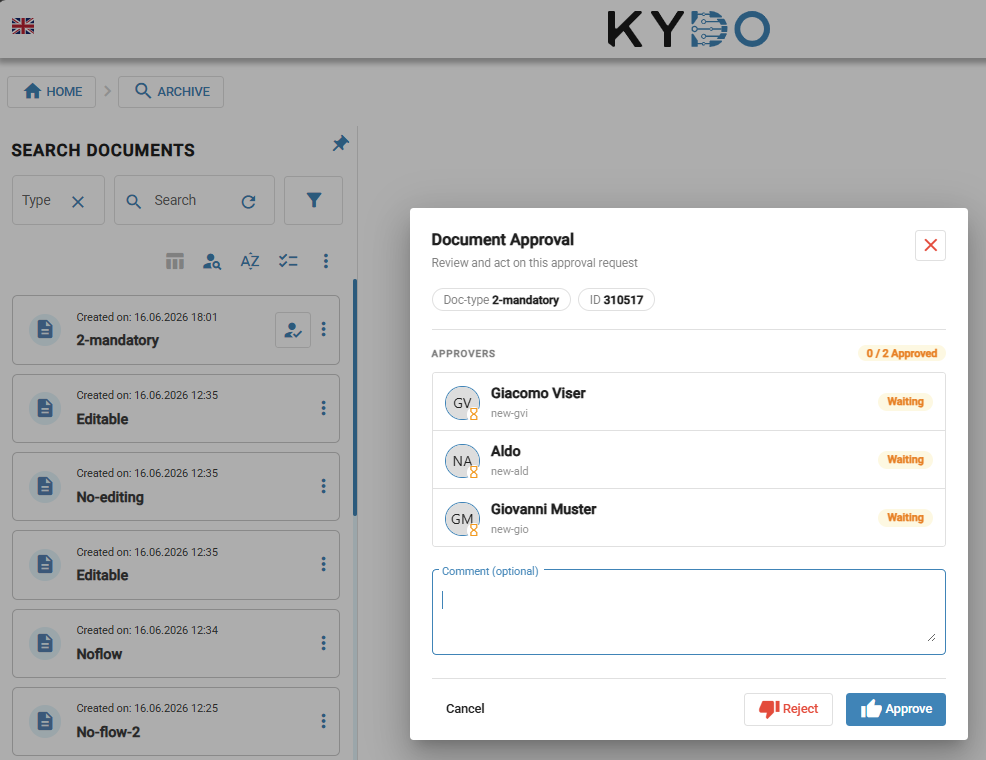
The dialog shows:
- The list of approvers and each person's current status: Waiting, Approved, or Rejected
- A progress indicator showing how many approvals have been received out of the required minimum
- An optional comment field
Click Approve or Reject to submit your decision. Your action is recorded immediately and the document status updates for all users.
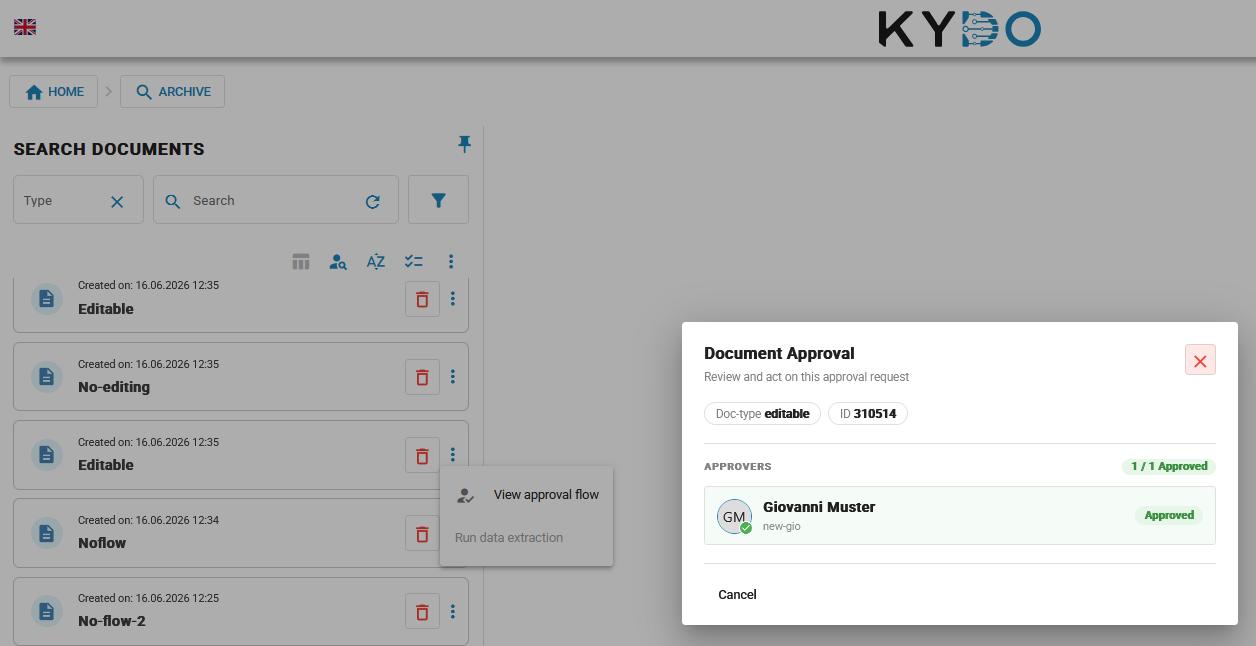
Once you have acted on a document, it is no longer pending for you and the approval button disappears from the card. You can still view the approval dialog at any time by opening the ⋮ menu on the document card and selecting View approval flow.
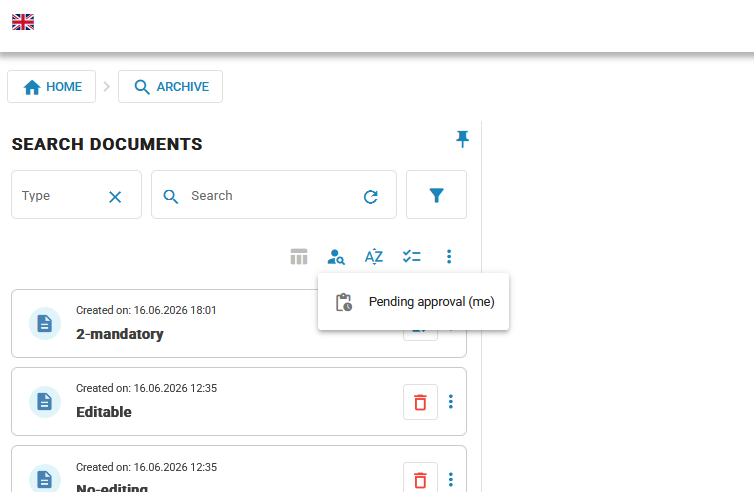
Quick filter: Pending approval (me)
Every archive with an approval flow enabled shows a quick filter button — Pending approval (me) — in the filter bar. Click it to instantly see only the documents that are waiting for your approval. This is the fastest way to work through your approval queue without using the advanced filter.
Frequently Asked Questions
Who can be added as an approver? Only users with the Approver role appear in the approver picker. Assign this role in user management before configuring the approval flow.
What is the difference between optional and mandatory approval? An optional flow is pre-configured but can be adjusted or skipped per document. A mandatory flow is fixed at the doc type level — every document of that type must be approved by the configured approvers before it can be processed.
What happens if a document is rejected? The document status changes to rejected and the rejection comment is visible to all users with access to the doc type. If a new file is attached, the flow automatically reopens.
Is a document locked while approval is pending? Yes. You cannot upload a new version, edit its attributes, or open it via the KYDO desktop integration while a flow is pending, and accounting (CV) actions are blocked. The document unlocks once the flow is resolved.
Can the same user both request and approve? An approver can only approve their own request if they are in the approver list. It is good practice to separate the person submitting documents from the approvers.
Can I change the approvers after the flow has started? No. Once an approval flow is in progress, the approver list and minimum are locked. You need to reject and re-trigger the flow to change them.
What is the accounting visa flow? Is it the same thing? No. The accounting visa flow (used by the Standard & CV-Viser role) is specific to the accounting module — it is the vising step before booking an expense or income document. The document approval flow described in this article is a general-purpose review mechanism that works independently of accounting.