First-time setup
The first time you open Print to KYDO, you will be asked to log in with your KYDO credentials. After that, the application stays authenticated — you will not need to log in again.
Drag and drop
Open the Print to KYDO application and drag your files onto the upload area, or click Browse to select them. Once the files are loaded, fill in the doc type attributes and send them to the archive.
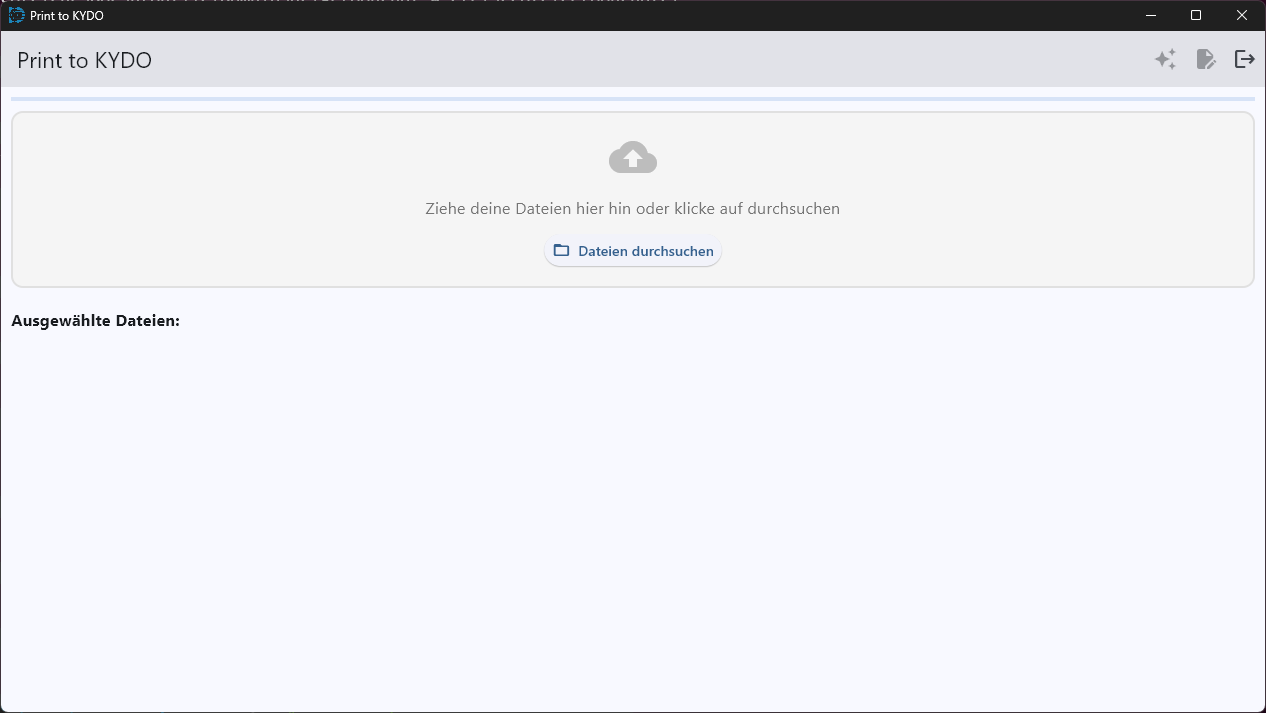
Virtual printer
Print to KYDO also installs as a virtual printer. In any application that supports printing, select Print to KYDO from the printer list. The application will open automatically, ready for you to fill in the attributes and archive the document.
Automatic analysis
Print to KYDO supports automatic attribute analysis — KYDO can read the document content and recognise the doc type automatically.
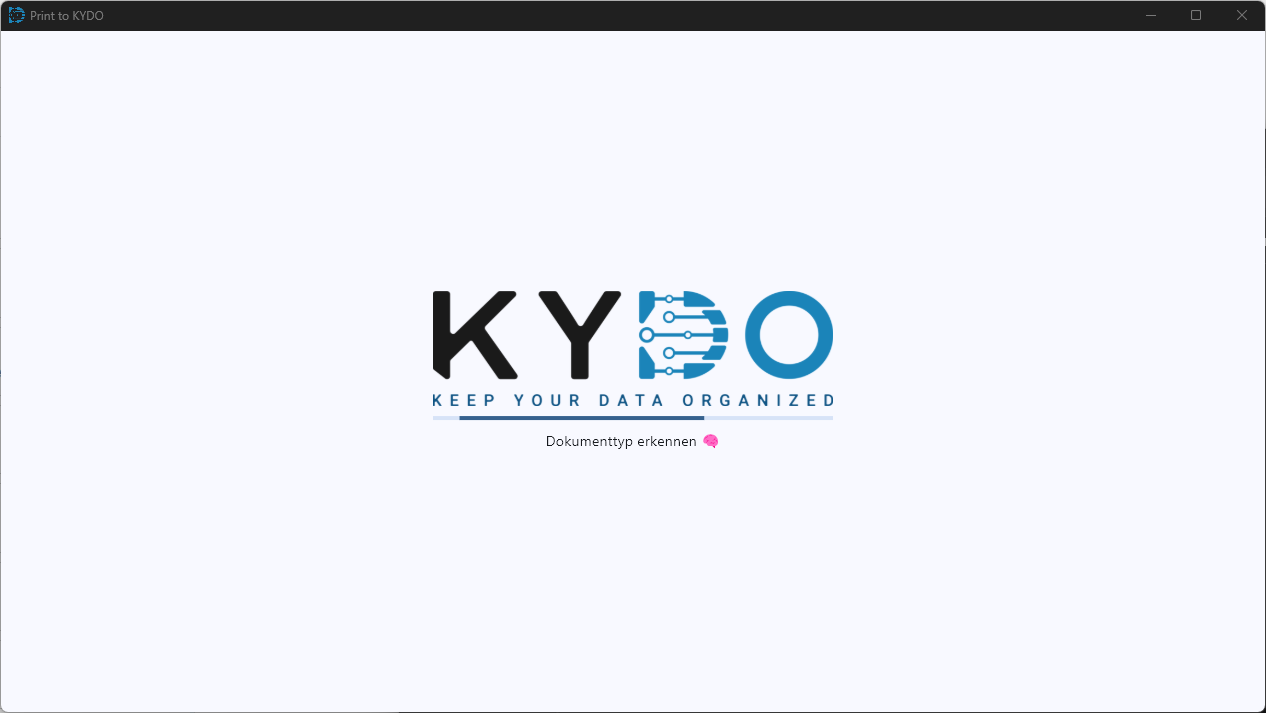
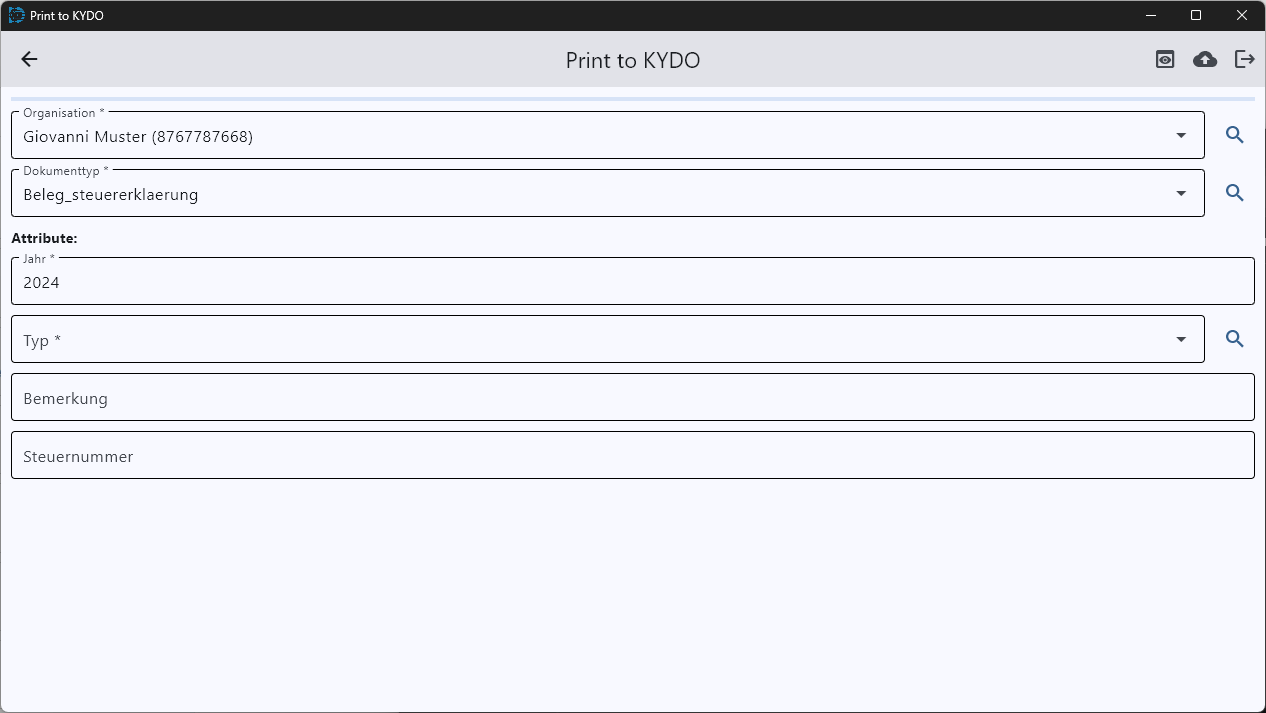
Once the analysis is complete, the attribute form opens pre-filled. Select the organisation and doc type, review and adjust the attributes if needed, then click the upload button in the top-right corner to send the document to the archive.
This feature is configured specifically for each organisation. To set it up, contact us — we will review your documents, work with you to define the analysis rules, and implement it for your environment.
Duplicate check
Before uploading, Print to KYDO searches the archive to check whether a document with the same name and attributes already exists.
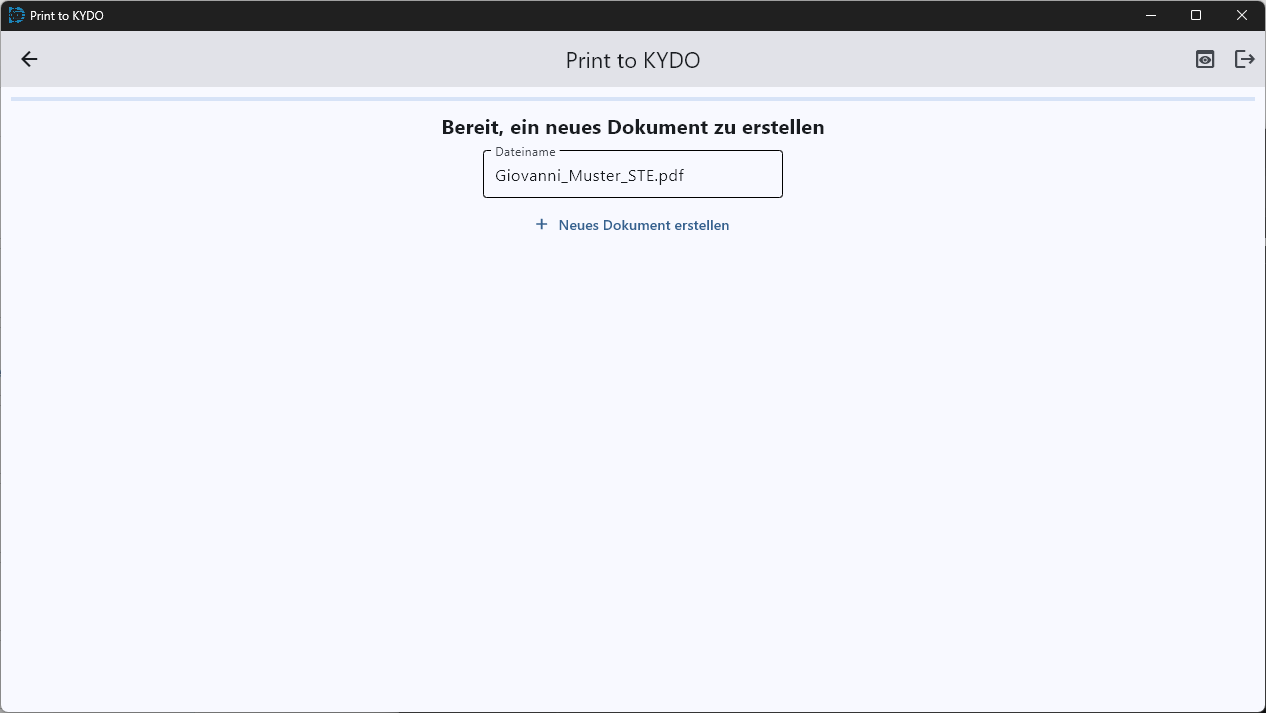
If no duplicate is found, Print to KYDO creates a new document in the archive. If a match is found, you are prompted to choose how to proceed:
- Replace — overwrite the existing document.
- New version — add the file as a new version of the existing document.
- New document — create a separate, independent document alongside the existing one.
Supported platforms
Print to KYDO is currently available on Windows. If you need it on Linux, macOS, or another platform, contact us — we build platform versions on request.