Graphical Interface
The Graphical Interface section controls the visual presentation and availability of the doc type across KYDO.
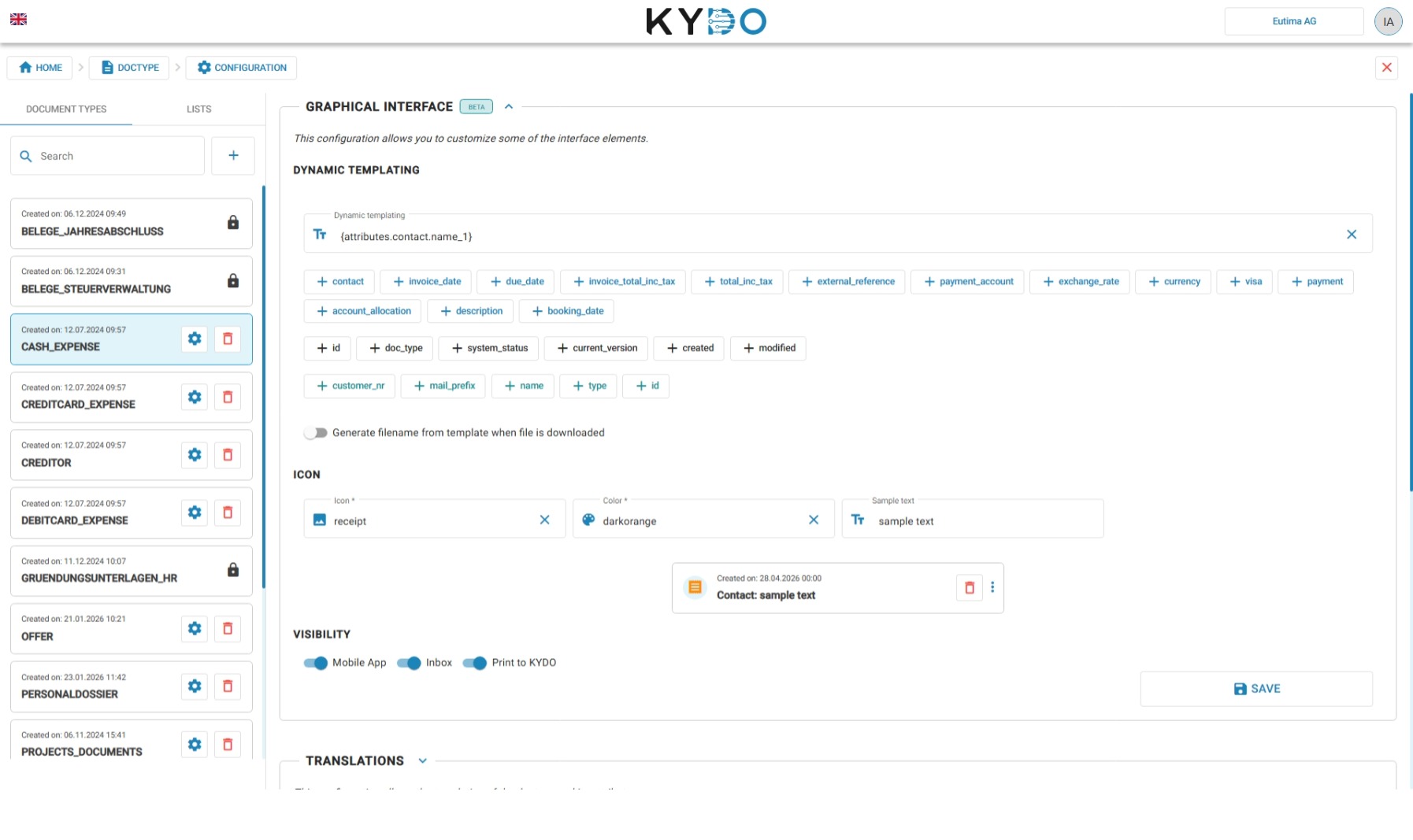
Dynamic Templating
Dynamic templating lets you define how a document's name is displayed in the archive. Build the template by clicking the attribute chips — each one inserts that field's value into the name. For example, combining a contact name and an invoice date produces a unique, readable label for each document in the archive list.
Generate filename from template
When this option is enabled, KYDO replaces the original filename with the generated template name whenever a document of this type is downloaded.
Icon and Color
Choose an icon and a color for the doc type. The icon appears on every document of this type in the archive, making it easy to identify at a glance.
Visibility
Control on which channels this doc type is available:
- Mobile App — visible and usable in the KYDO mobile app.
- Inbox — available when filing documents through the web inbox.
- Print to KYDO — available when printing via the Print to KYDO virtual printer.
Translations
The Translations section lets you provide a human-readable name for the doc type and each of its attributes in any of the supported languages. Select a language using the flag tabs, then fill in the translated names.
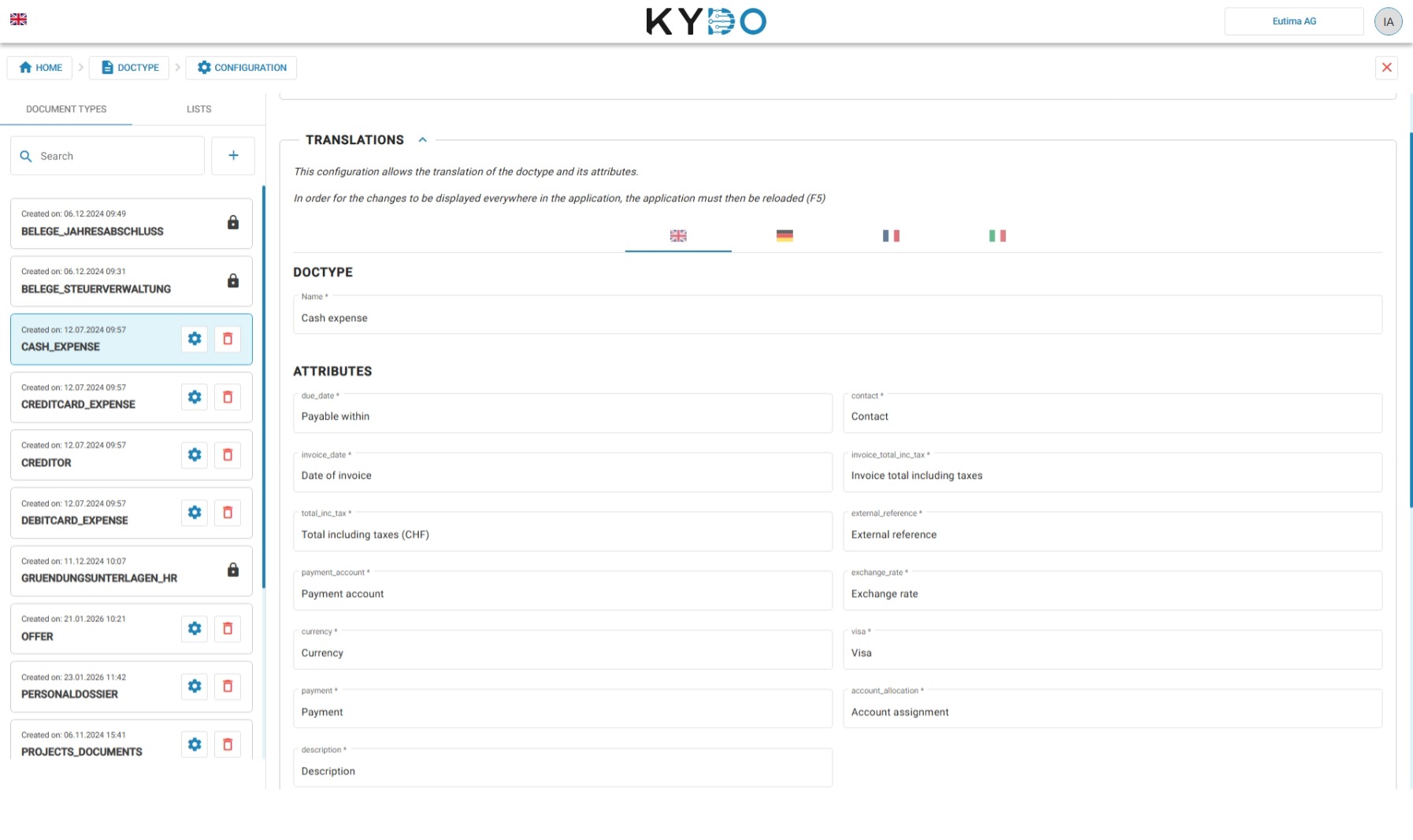
Translated names are shown to users throughout the application — in the archive list, the inbox, and anywhere the doc type or its attributes appear. After saving your changes, reload the application (F5) for the translations to take effect everywhere.
Note: translations only affect how names are displayed in the UI. The original attribute names defined in the doc type are still used by the API.
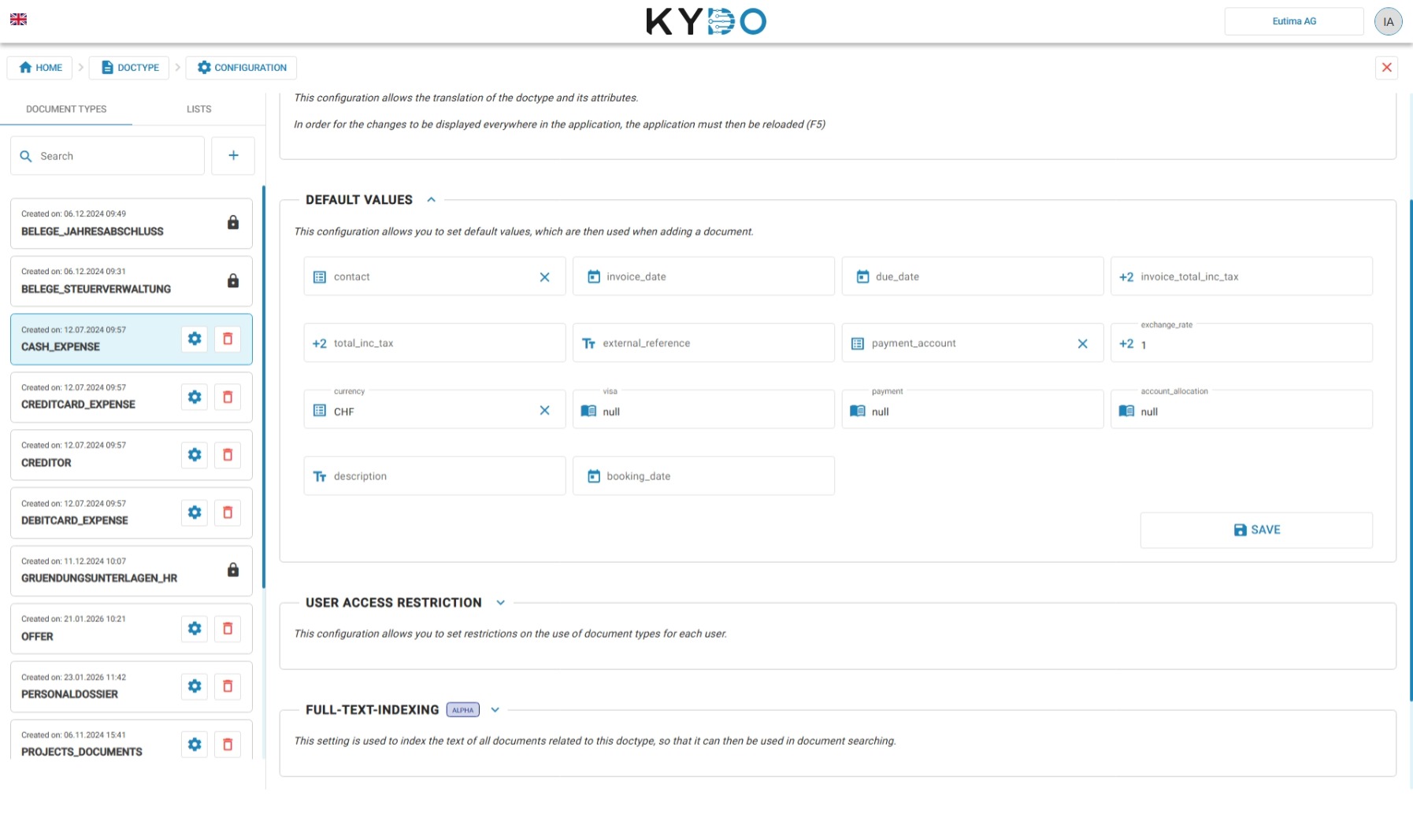
Default Values
The Default Values section lists all the attributes defined in the doc type. For each attribute, you can set a default value — when a user adds a new document of this type, KYDO will pre-fill that value automatically. The user can still change it before saving.
User Access Restriction
User Access Restriction lets you control which users can access a doc type. The feature is disabled by default — enable it with the toggle to activate restrictions.
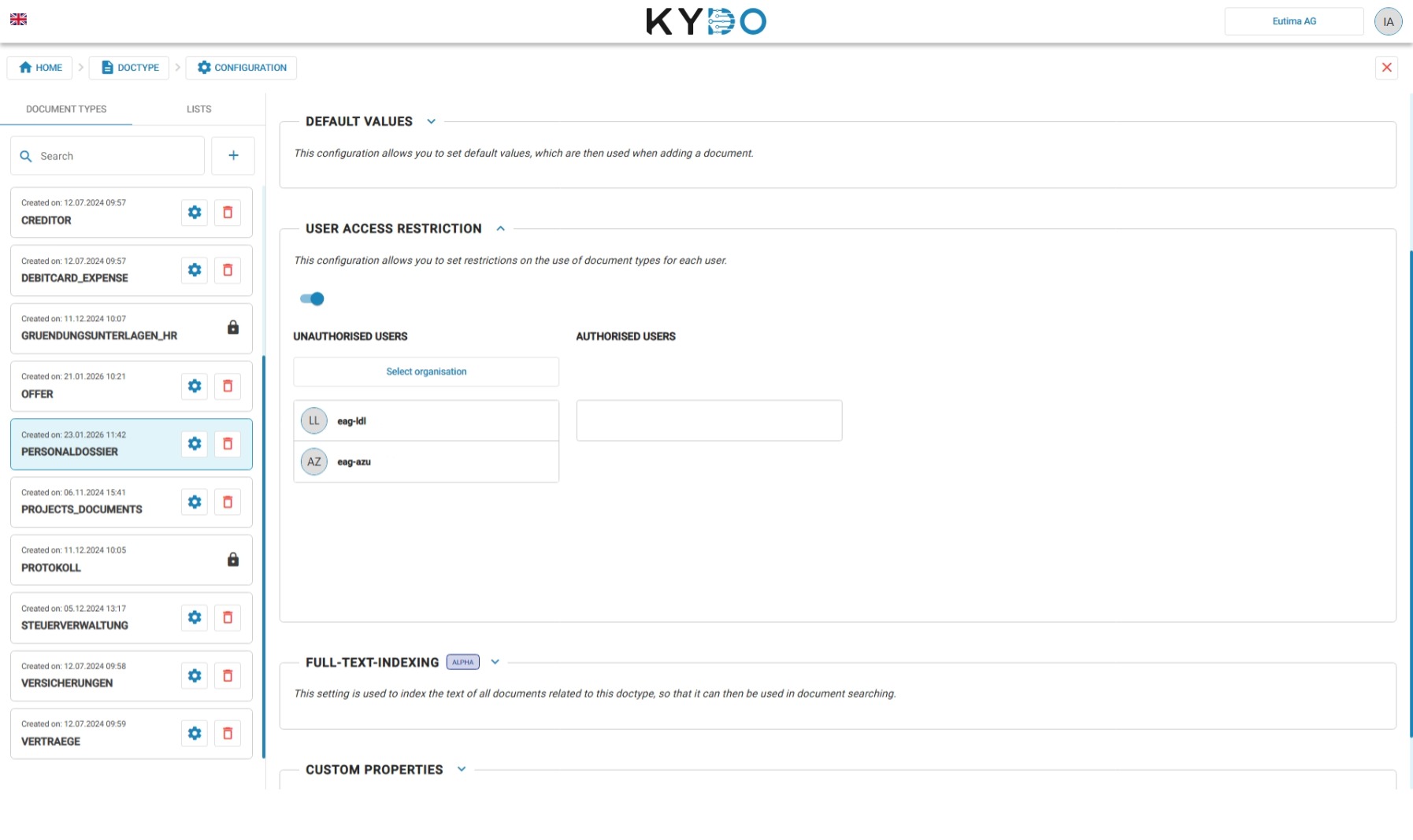
Once enabled, you see two columns: Unauthorised Users and Authorised Users. Move users between columns to grant or block access. For each authorised user you can choose the level of access:
- Read — the user can view documents of this type but cannot edit them.
- Read & Write — the user can view and edit documents of this type.
Full-Text-Indexing
Full-Text-Indexing is an alpha feature that lets KYDO parse and index the text content of all documents belonging to a doc type. Once indexed, users can search for any word contained in the document content — not just the attribute values.
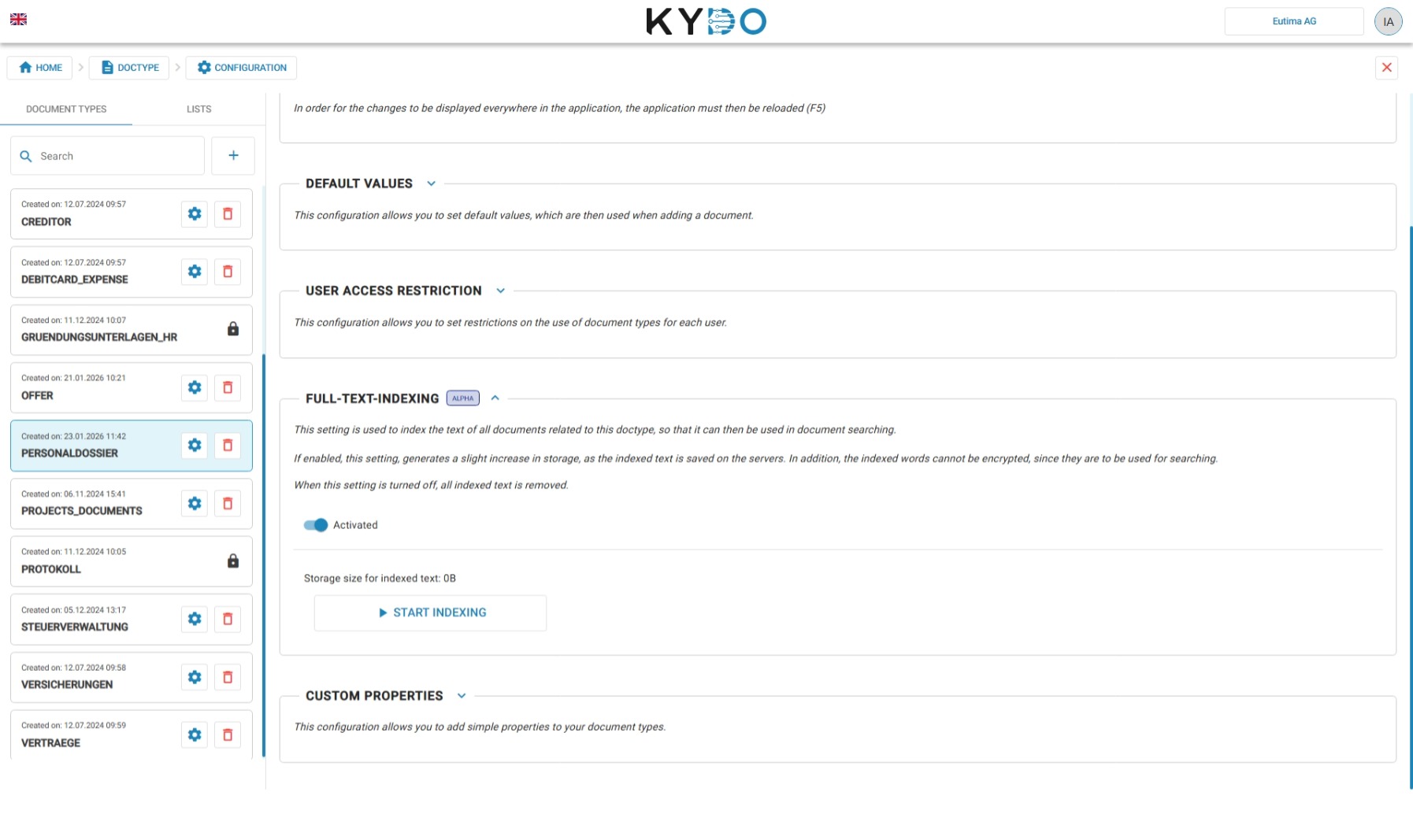
Enable the feature with the toggle, then click Start Indexing to index existing documents. The storage size of the indexed text is displayed so you can monitor usage.
A few things to keep in mind:
- Enabling this feature increases storage, as the indexed text is saved on the server.
- Indexed words cannot be encrypted, since they need to be readable for search.
- If you turn the feature off, all indexed text is permanently removed.
- OCR support (for scanned documents and images) is not yet available but is planned for a future release.
Approval Flow
The Approval Flow section lets you configure a review and sign-off step for this doc type. When enabled, documents can be submitted for approval by designated users before they are processed.
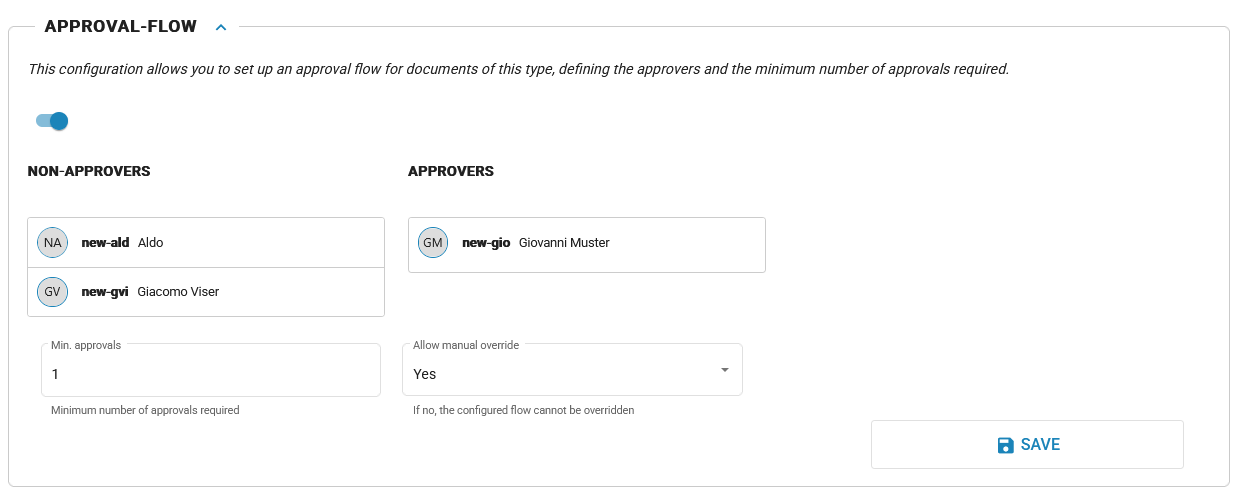
- Approvers — add the users who are authorised to approve documents of this type. Only users with the Approver role appear in the picker.
- Min. approvals — the minimum number of approvals required before the flow is resolved. Must not exceed the number of approvers added.
- Allow manual override — when on, users can adjust the approvers and minimum when they trigger the flow on a specific document. When off, the flow is mandatory: every document of this type must be approved by the configured approvers and the settings cannot be changed per document.
For a full description of the approval flow from the user's perspective, see Document Approval Flow.
Accounting Autocomplete Config
For doc types assigned to the Counting & Vising module, an Accounting Autocomplete Config section lets you suggest an account-allocation description automatically when booking a document.
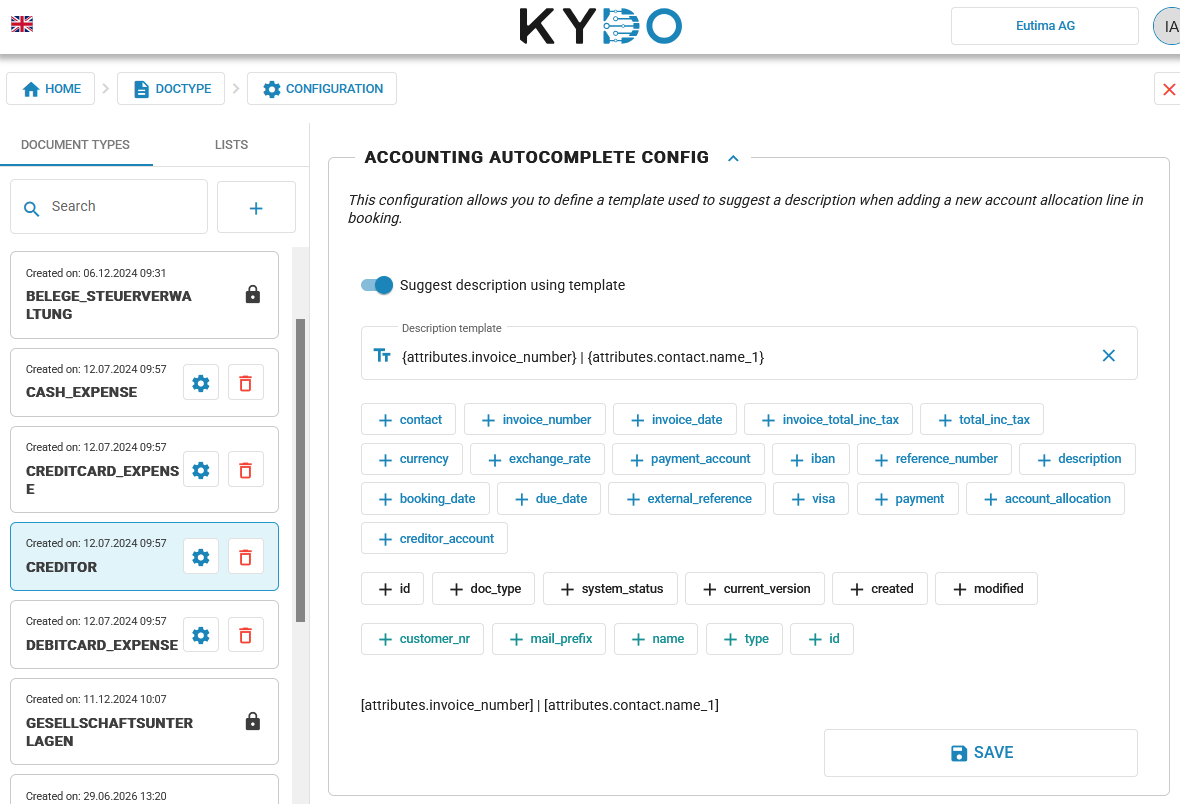
Turn on Suggest description using template, then build the description template by clicking the attribute chips — the same dynamic templating approach used for document naming. A preview of the resulting description updates as you build the template.
Mandatory Visa Flow
The mandatory visa flow ensures that specific users are always included in the accounting visa process for documents of this type, regardless of who triggers the visa. It is configured via the custom property mandatory_visa_flow as a comma-separated list of usernames (e.g. john.doe, jane.smith). Add it in the Advanced Properties section of the doc type settings.
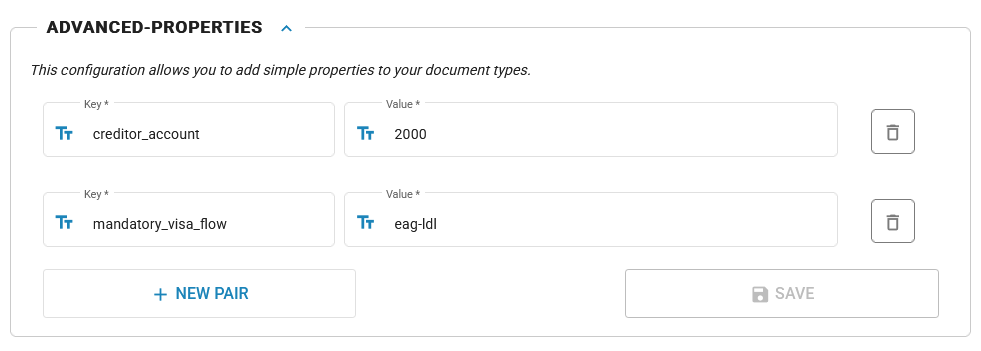
When a document enters the accounting visa flow, KYDO automatically injects the listed users into the visa list. If a listed user does not exist, the flow is blocked and an error is returned.
A dedicated configuration UI for this feature is planned for a future release. For now, contact your KYDO administrator to set or update the mandatory_visa_flow custom property.
Frequently Asked Questions
Can I restrict a doc type to specific users? Yes. Enable User Access Restriction on the doc type and move users between the Unauthorised and Authorised columns. You can grant Read or Read & Write access per user.
How do I make a doc type available on mobile? In the Graphical Interface section, enable the Mobile App toggle under Visibility.
What is dynamic templating? Dynamic templating lets you build a naming pattern for documents using their attribute values. For example, combining a supplier name and an invoice date creates a unique, readable label for each document in the archive.
Can I set default values for document attributes? Yes. In the Default Values section, set a pre-filled value for any attribute. Users can still change it when adding a document.
What is Full-Text-Indexing? Full-Text-Indexing lets KYDO index the text content of documents, so users can search by any word inside the document — not just the attribute values. It is an alpha feature and increases storage usage.
How do I make an approval flow mandatory? In the Approval Flow section, add your approvers, set the minimum approvals, and turn off Allow manual override. With this off, the configured approvers and minimum are locked — users cannot skip or change the flow on individual documents.