KYDO is built on a multi-tenant architecture. Resellers and distributors can create and manage multiple sub-organisations — each with its own users, document types, and archive — all from a single account.
Accessing organisations
From the KYDO home screen, click the Administration card, then navigate to Organizations. From here you can add, edit, and delete organisations.

Creating an organisation
Click + and fill in the required fields to create a new organisation.
- Mail prefix — sets the email address used for mail import. Any PDF sent to that address will arrive directly in the organisation's Inbox.
- Contact person — assigns the organisation to a member of the base organisation. Useful for large resellers who manage many sub-organisations across multiple employees. The contact person can be used as a filter in the dashboard and for notifications.

→ See Uploading Documents for details on how mail import works.
Custom logo
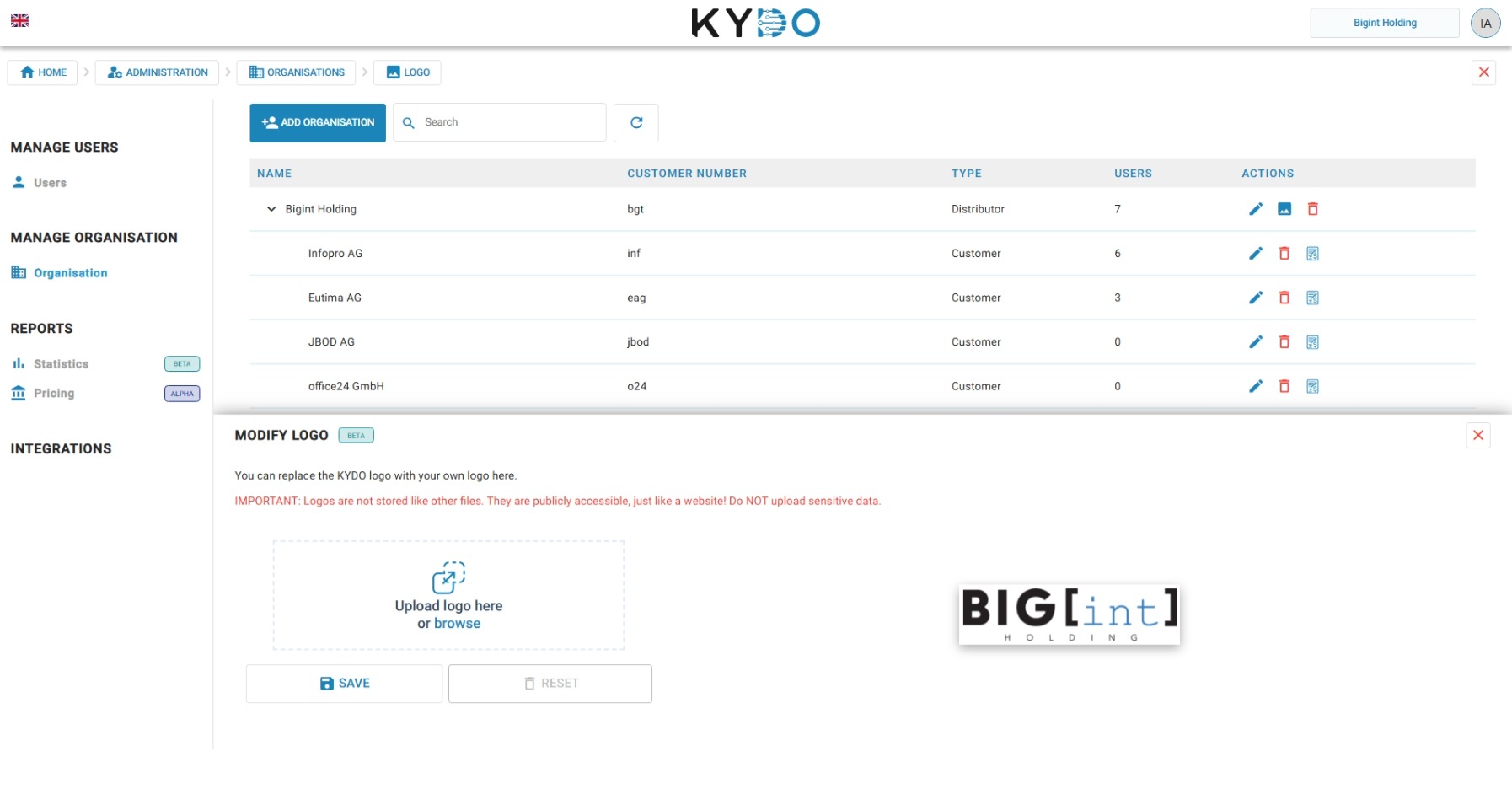
Reseller and distributor organisations can replace the KYDO logo with their own branding. Click the image icon in the Actions column next to an organisation to open the logo editor.
Upload your logo file and click Save. To revert to the default KYDO logo, click Reset.
Important: Logos are not stored like other files — they are publicly accessible, just like a file on a website. Do not upload sensitive or confidential images.
Switching tenants
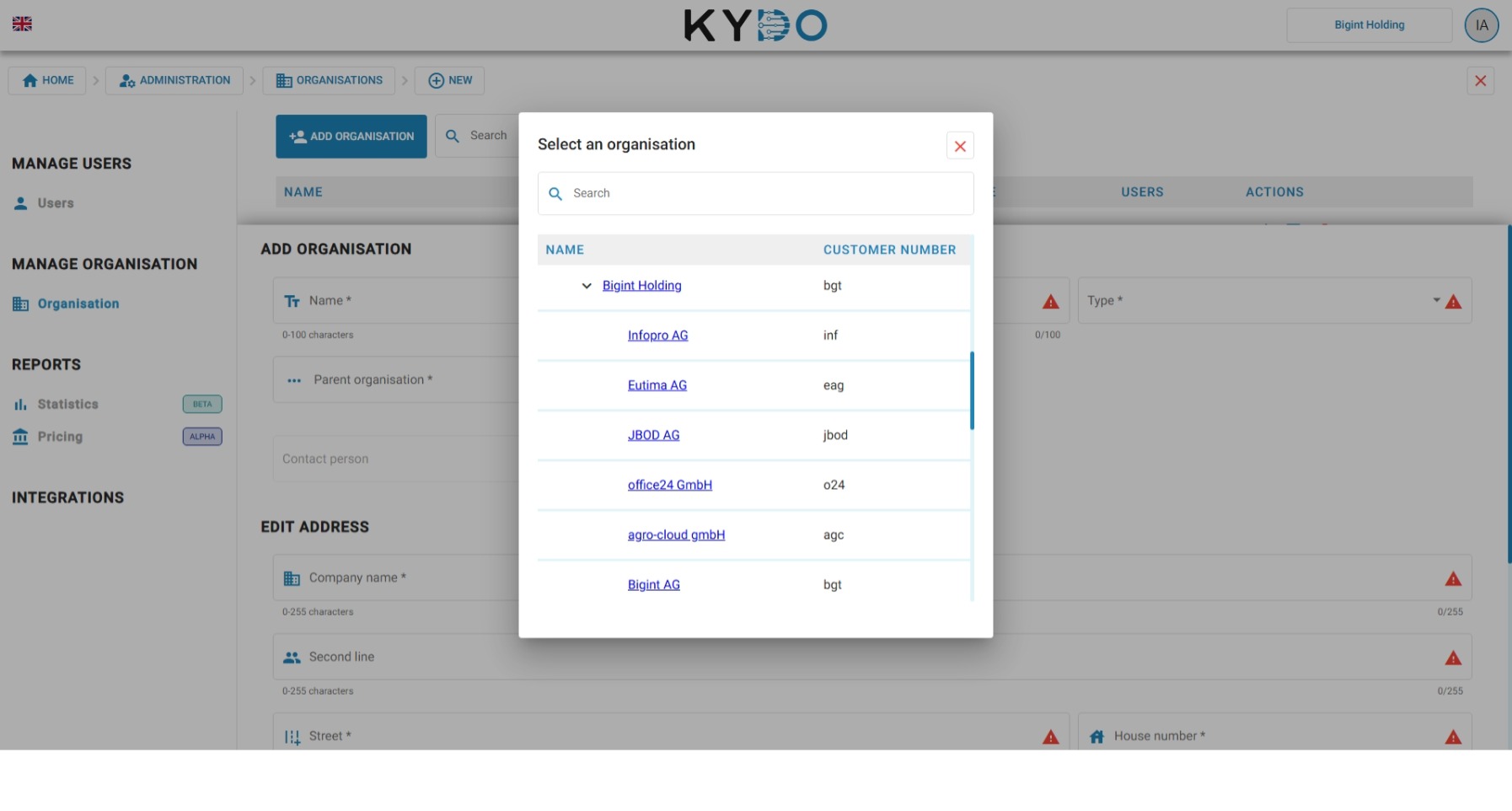
If you have access to more than one tenant, a tenant switcher is available in the top-right corner of the page. Click it to see the list of tenants you can access and select the one you want to work in.
Frequently Asked Questions
What is a tenant in KYDO? A tenant is an independent organisation within KYDO — with its own users, document types, and archive. Resellers and distributors can create and manage multiple tenants from a single account.
Who can create and manage sub-organisations? Only administrators of reseller or distributor tenants. Standard customer tenants do not have this feature.
What is the mail prefix used for? The mail prefix defines the email address for that organisation's mail import. Any PDF sent to that address arrives directly in the organisation's Inbox.
What is the contact person field? The contact person assigns the organisation to a member of the base organisation. It is useful for large resellers managing many clients across multiple employees, and can be used as a filter in the dashboard and for notifications.
Can I switch between tenants without logging out? Yes. Use the tenant switcher in the top-right corner to move between any tenants you have access to.