The archive list
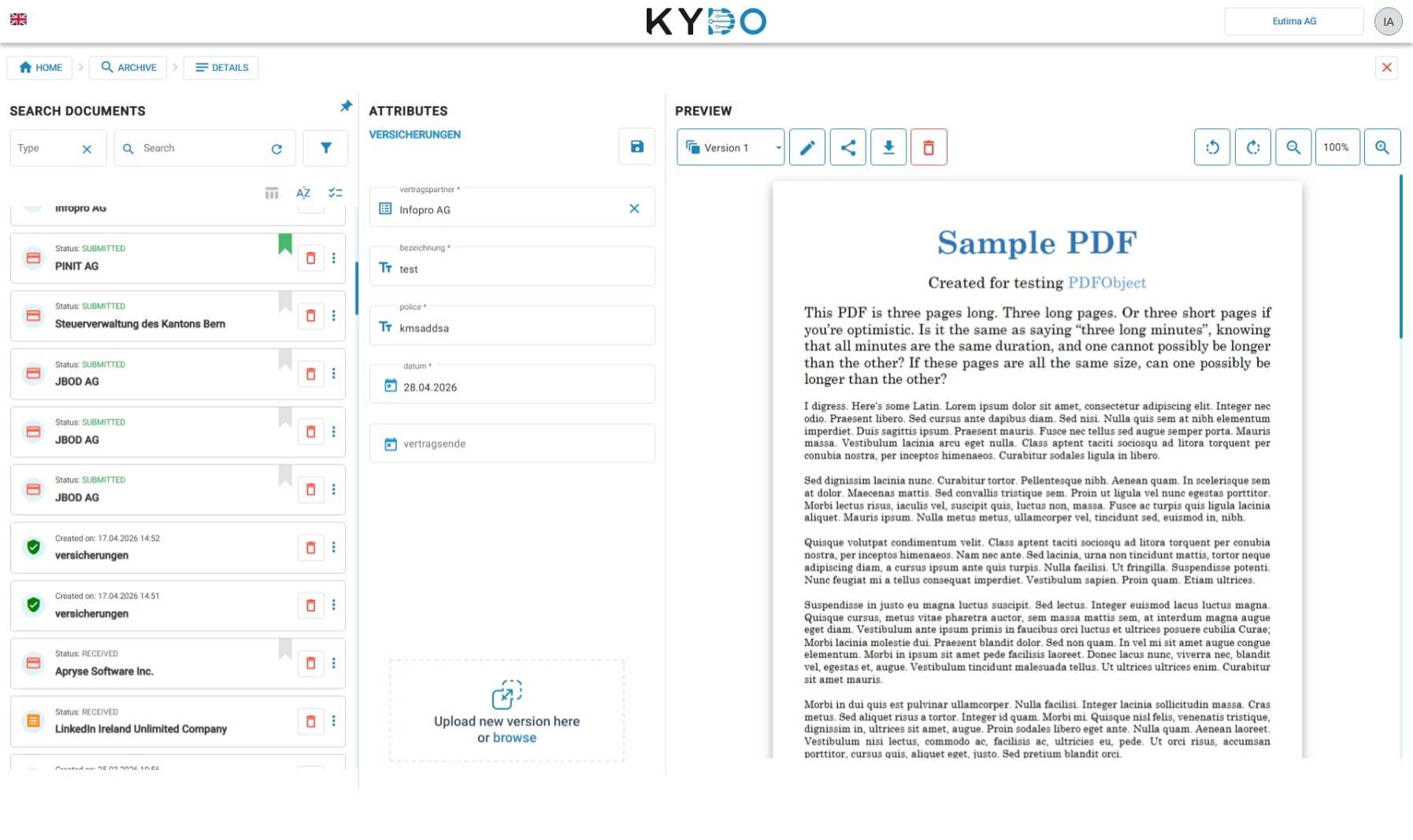
The archive shows all your documents in a list, sorted by date added with the most recent at the top. The name displayed for each document depends on how the doc type is configured: if dynamic templating is set up, the name is generated from the document's attributes; otherwise, the original filename is shown.
If a document is currently being edited by another user via the KYDO desktop integration, a lock indicator is shown on the document card. This feature is available to users with the desktop protocol handler installed.
Searching
The search bar is the fastest way to find a document. Type any word and KYDO searches across all the attribute values of the selected doc type — contact names, dates, reference numbers, and any other fields you filled in when filing the document.
If full-text indexing is enabled for a doc type, the search also covers the content of the documents themselves — not just the attributes. See Doc Type Configuration for details on enabling full-text indexing.
Quick filters
The toolbar above the document list may show quick filter buttons depending on the doc type. For doc types with an approval flow enabled, a Pending approval (me) button lets you instantly filter to documents waiting for your approval. See Document Approval Flow for details.
Advanced filter
The advanced filter button is located to the right of the search bar. It lets you build a precise query by selecting a doc type and filling in specific values for each of its attributes.
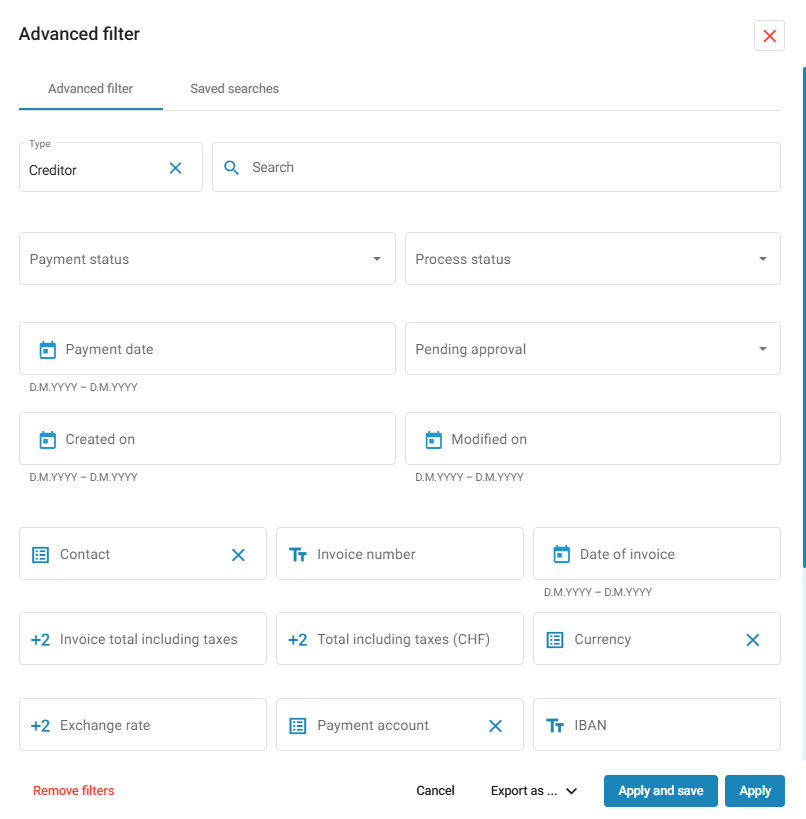
When you open the advanced filter, select a doc type from the list. KYDO will display all the attributes defined for that doc type — you can fill in any combination of values to narrow your search. You can also filter by:
- Created on — the date the document was added to the archive.
- Modified on — the date the document was last edited.
For accounting tenants, additional filters are available:
- Payment date
- Pending approval
- Payment status
- Process status
Once you have filled in the filters, click Apply in the bottom-right corner. KYDO will run the query and show only the documents that match all the specified criteria.
Export
With a filter set defined, you can export the matching documents directly from the advanced filter panel. Choose the export format:
- CSV — exports the document metadata only (the attribute values).
- ZIP — exports the document metadata and the actual files.
The export may take a few minutes depending on the number of documents. KYDO will notify you when it is ready and prompt you to download the file.
Saved searches
Alongside the Apply button at the bottom of the panel, there is a Save button. Use it to save the current filter set for later use. Saved searches can be made available to all users in your organisation, so a complex filter only needs to be configured once.
To use a saved search, open the advanced filter panel and switch to the Saved Search tab. Select a previously saved search from the list and apply it.
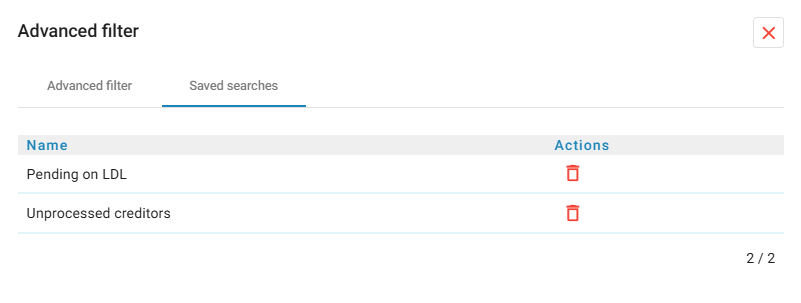
Admins and the user who created the saved search can delete it.
Advanced features
Below the search bar, a toolbar gives access to additional actions.
Table view
Select a doc type and click the table icon to switch to table view. Instead of the default list, documents are displayed in a table where each column corresponds to an attribute — useful for scanning and comparing metadata across many documents.
Bulk actions
You can select multiple documents and act on them at once:
- Delete — permanently remove all selected documents.
- Preview — open a preview of all selected documents in the browser.
Sorting
Use the sort controls to change the order of the document list. You can sort by creation date or last modified date, in ascending or descending order.
Share bundles
Click the Share icon in the toolbar to open the Share bundle dialog — with or without documents selected. To create a new bundle, select the documents you want to share first (the dialog shows how many are selected), enter an optional name, set the expiration time (days, hours, minutes — or Unlimited), and click Create. Below the create form, a Shared Links table lists your existing bundles, with their name, expiration date, and actions to copy the ZIP download link or delete a bundle before it expires.
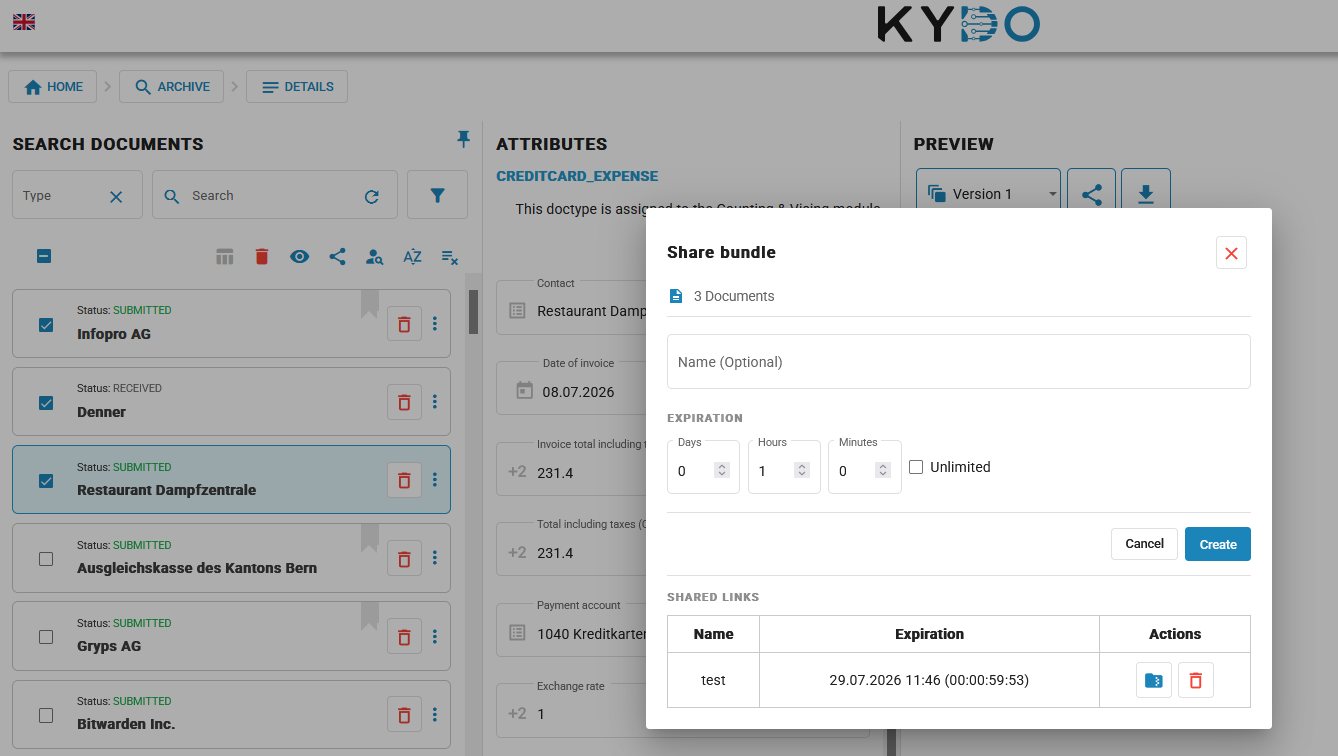
Share bundles are available to users with the Administrator, Standard, or CV role.
Frequently Asked Questions
How do I search for a document in KYDO? Type in the search bar at the top of the archive. KYDO searches across all attribute values of the selected doc type. If full-text indexing is enabled, it also searches inside the document content.
Can I search inside document content, not just attributes? Yes, if Full-Text-Indexing is enabled for the doc type. → See Doc Type Configuration
Can I export documents from the archive? Yes. Use the advanced filter to define your selection, then export as CSV (metadata only) or ZIP (metadata and files).
What is a saved search? A saved search stores a filter configuration so you or your team can reuse it without rebuilding it each time. Saved searches can be shared across all users in your organisation.
What is table view? Table view displays documents in a spreadsheet-like layout where each column is a document attribute. Useful for scanning and comparing metadata across many documents at once.
What is a share bundle? A share bundle is a time-limited ZIP download link containing multiple documents. Anyone with the link can download the files — no KYDO account required. You set the expiration when creating the bundle, or choose Unlimited for a permanent link.
Who can create share bundles? Users with the Administrator, Standard, or CV role. Read-only and upload-only roles do not have access.